
Installing Gitkeen
You also need Git 2.30 or newer on your computer.
Which file to download
Download Gitkeen from the Releases page. Open the newest release, and under Assets choose the file for your system:
| Your system | File |
|---|---|
| macOS on Apple silicon (M1 and newer) | Gitkeen-macOS-Apple-silicon.dmg |
| macOS on Intel | Gitkeen-macOS-Intel.dmg |
| Windows 10 and 11 | Gitkeen-Windows-Installer.exe |
| Linux | Gitkeen-Linux.AppImage |
| Debian and Ubuntu | Gitkeen-Linux.deb |
On Fedora, openSUSE and other Linux systems, use the AppImage.
A release also lists .app.tar.gz files and latest.json. Gitkeen uses them
to update itself. You do not need to download them.
Opening Gitkeen the first time
Gitkeen is not signed with a paid developer certificate yet. Your system therefore cannot check who made it, and asks you once before it opens it.
macOS
- Open the
.dmgand drag Gitkeen to Applications. - Open Gitkeen. macOS says that it could not verify the app. Press Done, not Move to Bin.
- Open System Settings, then Privacy & Security.
- Scroll down to Security. Next to “Gitkeen.app” was blocked to protect your Mac, press Open Anyway.
- Confirm with your password or Touch ID. From now on, Gitkeen opens normally.
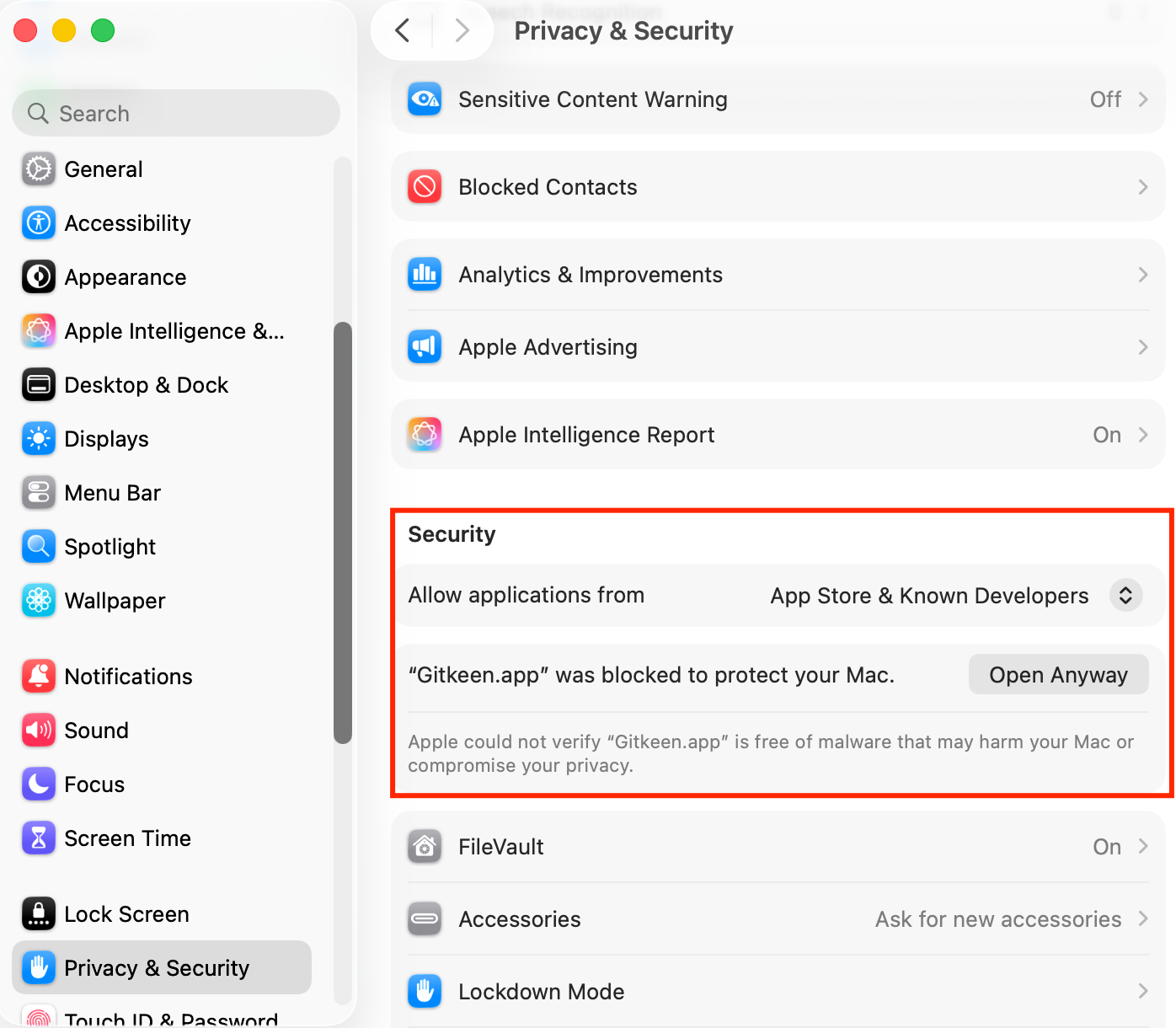
The button appears only for about an hour after macOS blocked the app. If it is not there, open Gitkeen again first.
Gitkeen 0.1.0 has a broken signature, so macOS says that the app “is damaged” and offers no Open Anyway. Newer versions do not have this problem. If you see the message, run this once in Terminal, then open Gitkeen again:
xattr -dr com.apple.quarantine /Applications/Gitkeen.appWindows
- Run
Gitkeen-Windows-Installer.exe. - If Windows says “Windows protected your PC”, press More info, then Run anyway.
- Install Git for Windows if you do not
have it yet. Gitkeen uses the
gitit finds on yourPATH.
Linux
For the AppImage, make the file executable, then run it:
chmod +x Gitkeen-Linux.AppImage
./Gitkeen-Linux.AppImage
For the .deb package on Debian or Ubuntu:
sudo apt install ./Gitkeen-Linux.debUpdates
Gitkeen is a pre-release for now, and pre-releases do not update themselves. To move to a newer pre-release, download and install it from the Releases page. From the first full release on, updates work as described here.
Gitkeen checks for a new version a few seconds after it starts. When there is one, a message offers Update and restart. The update is downloaded, its signature is checked, and Gitkeen restarts in the new version. To check at any time, choose Check for updates in the command palette.
| Installed from | Updates itself |
|---|---|
macOS .dmg | Yes |
| Windows installer | Yes |
| Linux AppImage | Yes |
Linux .deb | No. Download and install the new package yourself. |